
BugSplat Unity SDK 5.0: Native Crashes, Gaming Consoles, and a New Crash Dialog

CEO and Cofounder at BugSplat
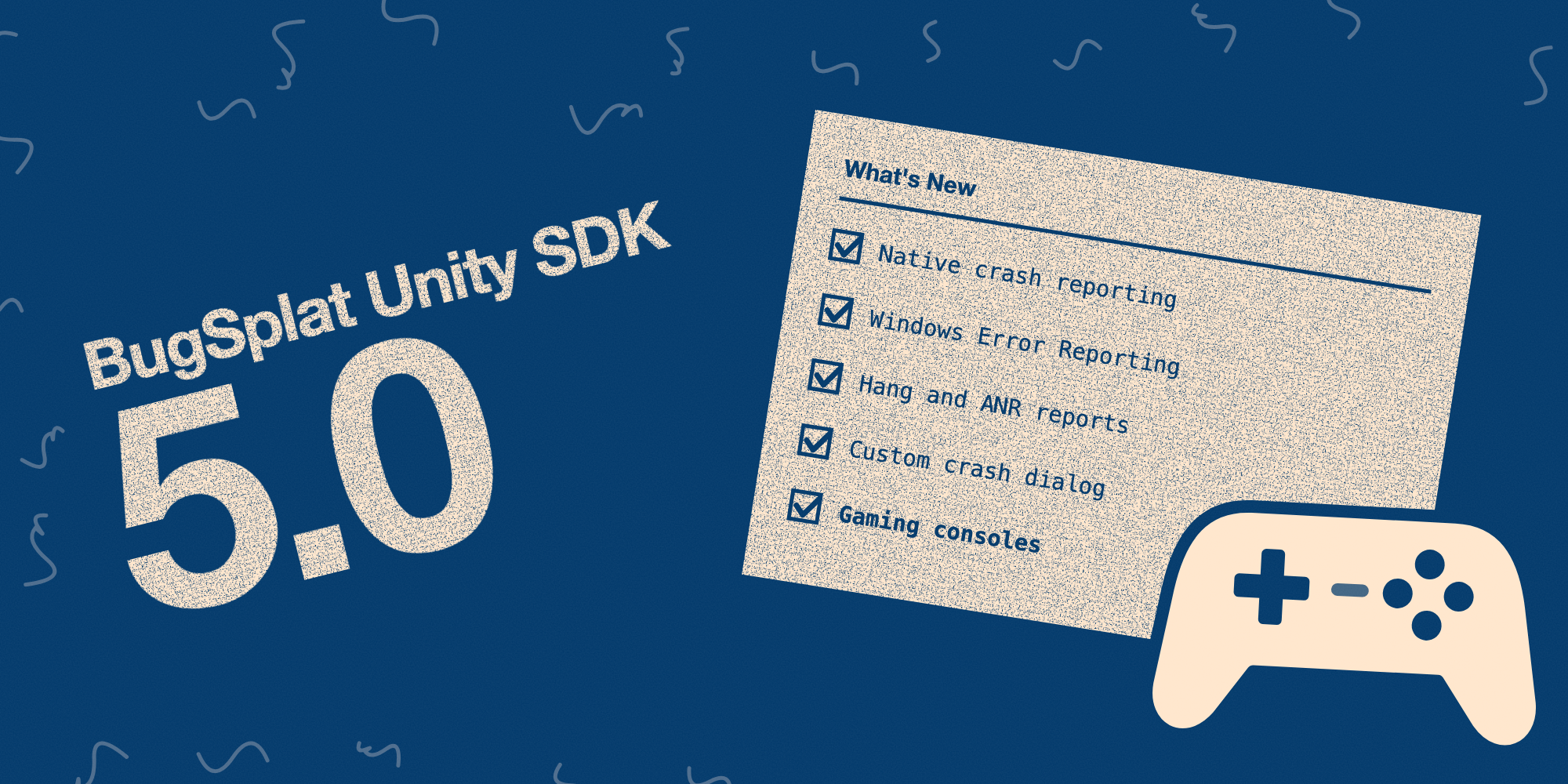
Tons of game studios and enterprise software teams rely on BugSplat to find and fix the crashes in the software they ship. Games running on Windows are where BugSplat earned its reputation for excellent crash reporting, and we recently built on that reputation with big improvements to the BugSplat Windows SDK. At the same time, we have been steadily adding new capabilities to the BugSplat SDKs for macOS, Linux, iOS, Android, and gaming consoles. A Unity game can ship on every one of those platforms, so we also decided to take a fresh look at how BugSplat could offer best-in-class crash and error reporting for Unity. The fresh look turned into months of work and a ground-up rebuild of the BugSplat Unity SDK, and today we're happy to announce version 5.0 of the BugSplat Unity SDK.
The rebuild starts with configuration, which now happens on a single page in Unity's Project Settings window. Once BugSplat is configured, the BugSplat Unity SDK 5.0 reports more kinds of failure than version 4 did: Windows Error Reporting support captures the crashes that no crash handler inside a game can catch, hang detection covers Windows, macOS, and iOS, and ANR reporting covers Android. When a native crash happens on Windows, your players see a crash dialog that you can customize to match your game, and when nothing has crashed, players can still send you feedback. Every crash report can carry your own custom attributes, and crash reports from the Xbox, PlayStation 5, and Nintendo Switch 2 gaming consoles arrive in the same BugSplat database as your desktop and mobile crash reports. A long list of bug fixes rounds out the release.
The BugSplat Unity SDK 5.0 requires Unity 6 (6000.0) or newer. The current release of the BugSplat Unity SDK is 5.1.0.
What's New
- Setup in Project Settings. You create one options asset and enter your BugSplat database. BugSplat starts before the first scene loads.
- Native crash reporting on Windows, macOS, iOS, and Android, turned on by default for new projects.
- Windows Error Reporting support. Stack buffer overruns, heap corruption, and
__fastfailterminations can only be captured through Windows Error Reporting. - Hang reports on Windows, macOS, and iOS, and ANR reports on Android.
- C# exceptions from background threads and from tasks that were never awaited.
- C# file names and line numbers in IL2CPP crash reports on Windows, macOS, iOS, and Android.
- The BugSplat crash dialog on Windows, which asks the player what happened and can be themed to match your game.
- User feedback, which lets a player send you a title and a description when nothing has crashed.
- Custom attributes, which attach your own names and values to each crash report.
- Gaming console support for Xbox, PlayStation 5, and Nintendo Switch 2.
Set Up BugSplat in Project Settings
- Open Edit > Project Settings > BugSplat.
- Click Create to create a
BugSplatOptionsasset. - Enter the name of your BugSplat database in the Database field.
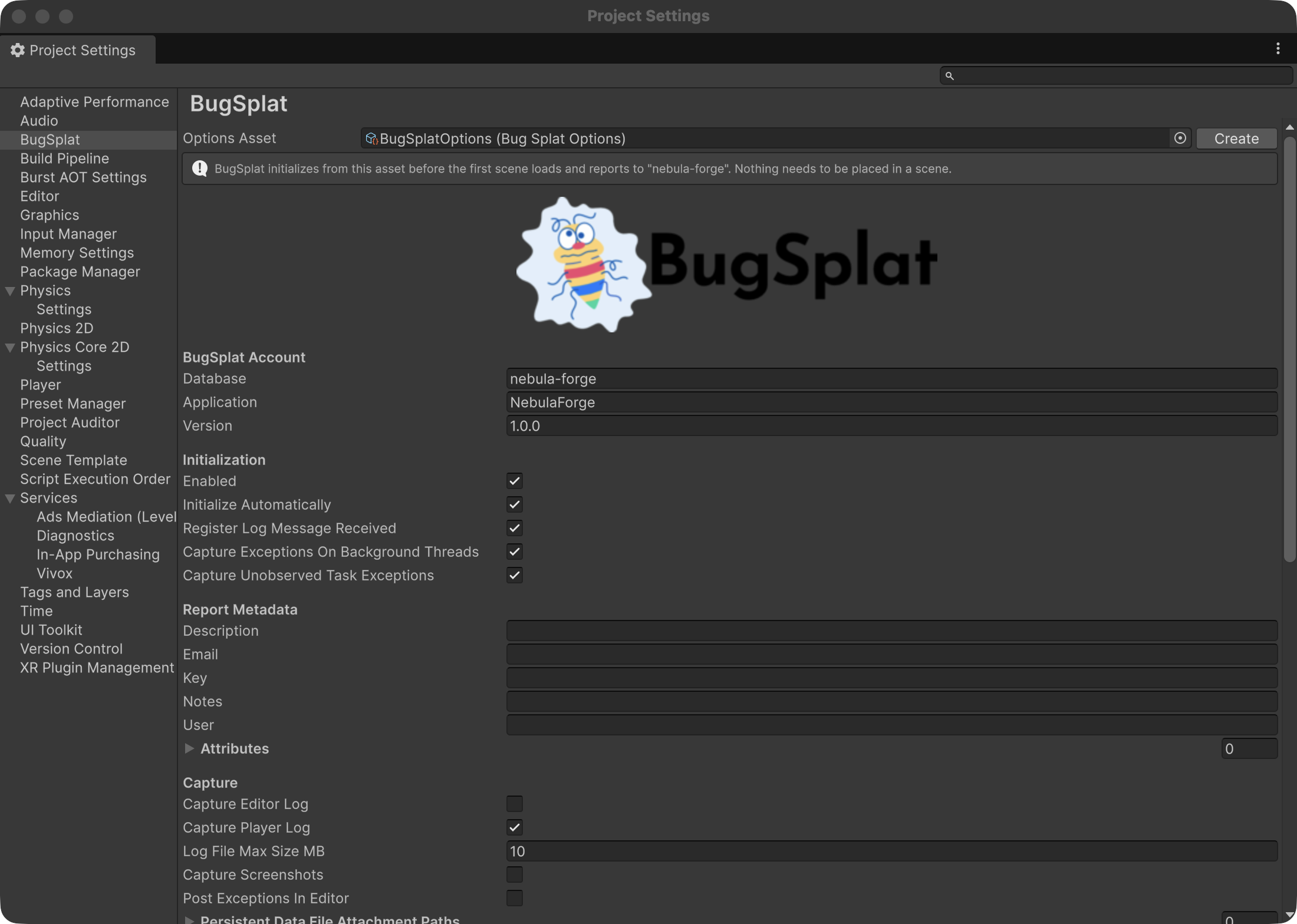
BugSplat starts from the BugSplatOptions asset before the first scene loads, in the Unity editor and in every built player. Version 4 of the BugSplat Unity SDK started from a BugSplatManager component that you placed in a scene, so a native crash that happened while the first scene was loading was never reported. A scene that still contains a BugSplatManager component keeps working in version 5.0.
Some projects cannot start BugSplat before the first scene loads:
- A consent screen. Turn off Initialize Automatically and call
BugSplat.Initialize()after the player agrees to send crash reports. - A different database for each environment. Call
BugSplat.Initialize(o => o.Database = database)to choose the database at runtime.
A release build fails when no BugSplatOptions asset is selected or when the Database field is empty, and the build error names the missing setting. A development build logs a warning and continues. In version 4 of the BugSplat Unity SDK, a project with no database built a player that reported nothing.
Native Crash Reporting
A new BugSplatOptions asset has native crash reporting turned on for Windows, macOS, iOS, and Android. Native crash reporting on macOS requires the IL2CPP scripting backend. Linux and WebGL players report C# exceptions only.
Windows
Native crash reporting on Windows works with both the Mono and IL2CPP scripting backends, in x86, x64, and ARM64 players. A separate process, BugSplatMonitor.exe, writes the crash report and uploads it. A crash report that cannot upload, for example because the player is offline, uploads the next time the game starts.
Hang detection on Windows is off by default. Set WindowsHangDetectionTimeoutMs to turn hang detection on. When the main thread stops responding for longer than the timeout, BugSplat uploads a hang report and ends the game, so choose a timeout longer than your longest loading screen.
Crashes That Only Windows Error Reporting Can Capture
Some Windows crashes can only be captured through Windows Error Reporting. When a game hits a stack buffer overrun, heap corruption, or a __fastfail call, Windows ends the game immediately and skips every crash handler inside the game, because the game's memory can no longer be trusted. A crash reporter that relies only on a crash handler inside the game never sees those crashes, no matter how the crash handler is installed.
The BugSplat Unity SDK 5.0 receives those crashes from Windows Error Reporting through BugSplatWer.dll, which the build copies next to your game. Windows Error Reporting only loads BugSplatWer.dll after your installer adds one registry value. The Windows page of the Unity guide has the registry commands, and Tools > BugSplat > Windows > Register WER Handler adds the registry value on your own machine for testing.
macOS, iOS, and Android
On macOS and iOS, a hang that never recovers is uploaded as an App Hang (Fatal) report the next time the game starts. On Android 11 and newer, BugSplat reports ANRs (Application Not Responding errors).
C# Exceptions on Background Threads and in Tasks
Unity only passes main-thread log messages to its standard log callback. An unhandled C# exception on a background thread was written to the player log and never reported. An exception inside a Task that no code awaited was not written to the player log at all.
The BugSplat Unity SDK 5.0 reports both kinds of exception by default. The report for an unawaited Task arrives after the garbage collector collects the Task, which can be well after the exception was thrown.
C# File Names and Line Numbers for IL2CPP Crashes
IL2CPP converts your C# code to C++ before compiling it, so the call stack of a native crash in an IL2CPP player names generated C++ functions. BugSplat maps each generated C++ frame back to the C# method, file name, and line number on Windows, macOS, iOS, and Android.
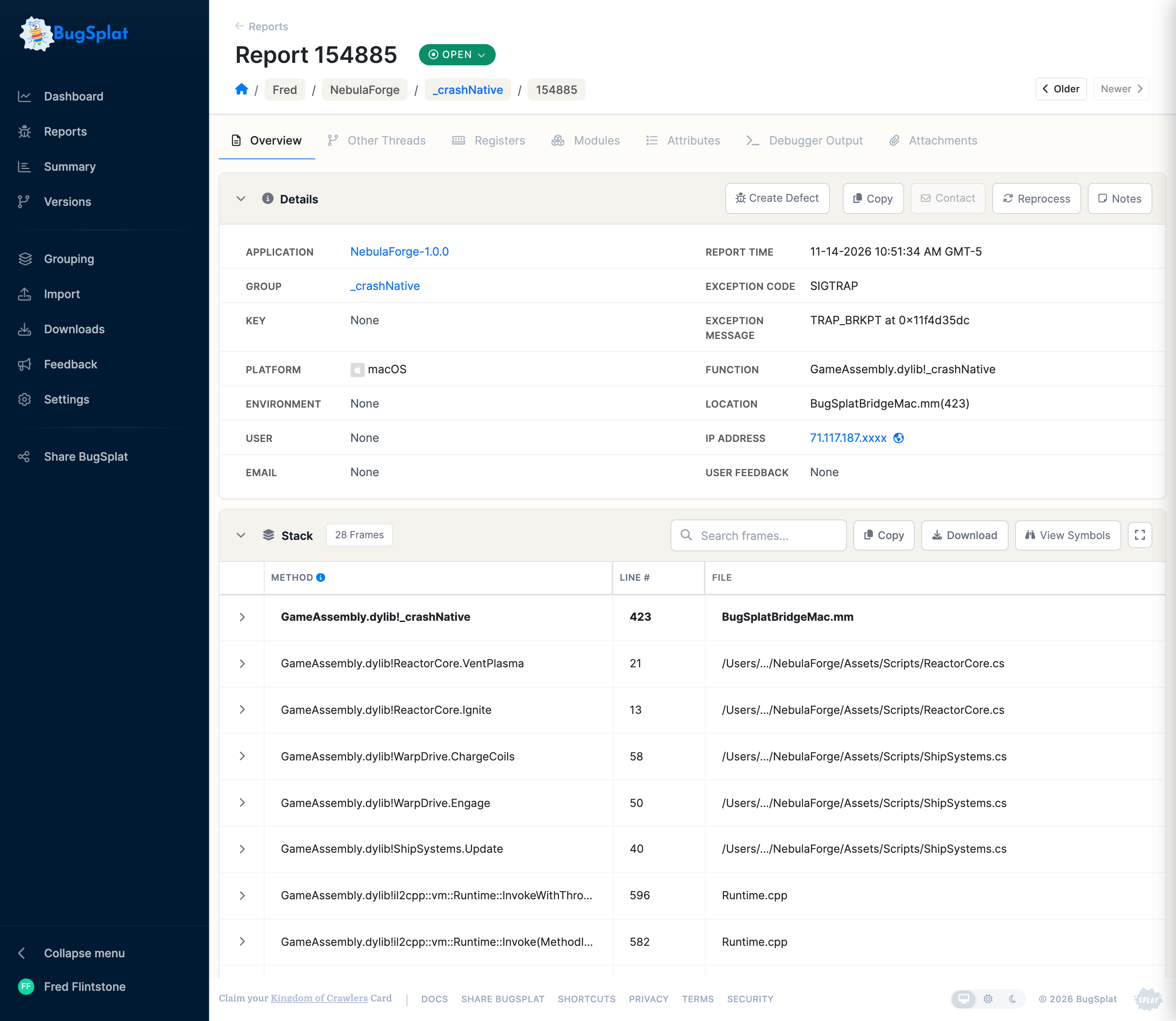
To get C# file names and line numbers in your IL2CPP crash reports:
- In Edit > Project Settings > Player, set IL2CPP Stacktrace Information to Method Name, File Name, and Line Number. Unity only writes the
LineNumberMappings.jsonfile that BugSplat needs when you choose that value. - Set your symbol upload credentials in Tools > BugSplat > Symbol Upload > Set Credentials. The build then uploads your debug symbols and
LineNumberMappings.jsonto BugSplat. Symbol upload is on by default for Windows. For macOS, iOS, and Android, turn on the symbol upload option for each platform in theBugSplatOptionsasset.
The Symbol Upload page explains where to create symbol upload credentials and how to supply them on a build server.
The BugSplat Crash Dialog on Windows
When a Windows player crashes, the player sees the BugSplat crash dialog. The crash dialog asks the player what they were doing before the crash and has optional name and email fields. Send report uploads the crash report with the player's description, name, and email. Don't send discards the crash report. The crash dialog follows the Windows light or dark mode setting.
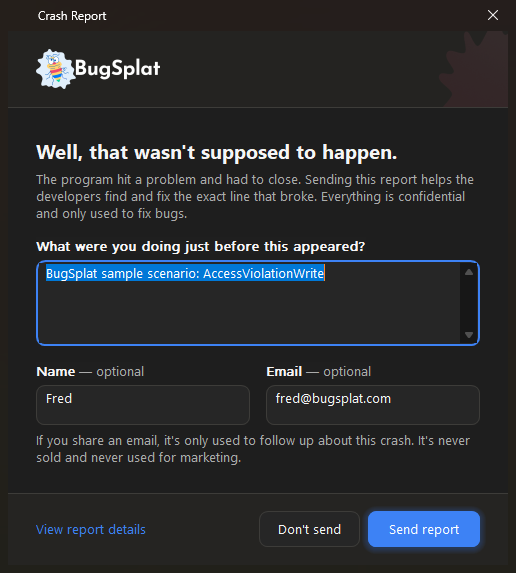
The crash dialog reads its colors, fonts, layout, logo, and text from a BugSplatTheme folder next to BugSplatReporter.exe in your build folder. You change the crash dialog by editing the JSON files in the BugSplatTheme folder, and you can add a text file for each language your game supports. The Crash Dialog Branding guide lists every theme setting and includes a complete example theme.
Every Windows build copies the default theme into the build folder's BugSplatTheme folder. To ship your own theme, copy your theme files into the BugSplatTheme folder after the build finishes, in your build script or in your installer. Run BugSplatReporter.exe --preview from the build folder to see the themed crash dialog without crashing your game.
To upload crash reports without showing the crash dialog, set WindowsShowCrashDialog to false.
Gaming Consoles: Xbox, PlayStation 5, and Nintendo Switch 2
The BugSplat Unity SDK 5.0 supports the Xbox, PlayStation 5, and Nintendo Switch 2 gaming consoles. Crash reports from gaming consoles go to the same BugSplat database as your desktop and mobile crash reports.
Gaming console support is available to developers who are licensed by each platform holder. The Xbox, PlayStation, and Nintendo Switch 2 pages explain how to get access.
Install the BugSplat Unity SDK
The package name is com.bugsplat.sdk. Install the package from OpenUPM with openupm add com.bugsplat.sdk, or add https://github.com/BugSplat-Git/bugsplat-unity.git in the Unity Package Manager with Install package from git URL. The package is also coming to the Unity Asset Store under the same name.
If you are new to BugSplat, create a free account and then follow the Unity guide.
Upgrade from Version 4
Version 5.0 of the BugSplat Unity SDK is a major release with breaking changes, and the migration guide lists each breaking change.
The package name also changed. Versions up to 5.0.1 were named com.bugsplat.unity. The Unity Asset Store does not accept unity in a package name, so version 5.1.0 renamed the package to com.bugsplat.sdk on OpenUPM and GitHub as well. To upgrade, remove com.bugsplat.unity from Packages/manifest.json and add com.bugsplat.sdk. Your settings in Project Settings > BugSplat carry over.
Test Your Setup
The package includes a sample named my-unity-crasher. Import my-unity-crasher from Window > Package Manager > BugSplat > Samples, open the Sample scene, and build a player. The sample's Crash Scenarios menu lists C# exceptions, native crashes, fail-fast crashes, hangs, and user feedback for the platform you built. The native crash scenarios are disabled in the Unity editor, so run them in a built player.
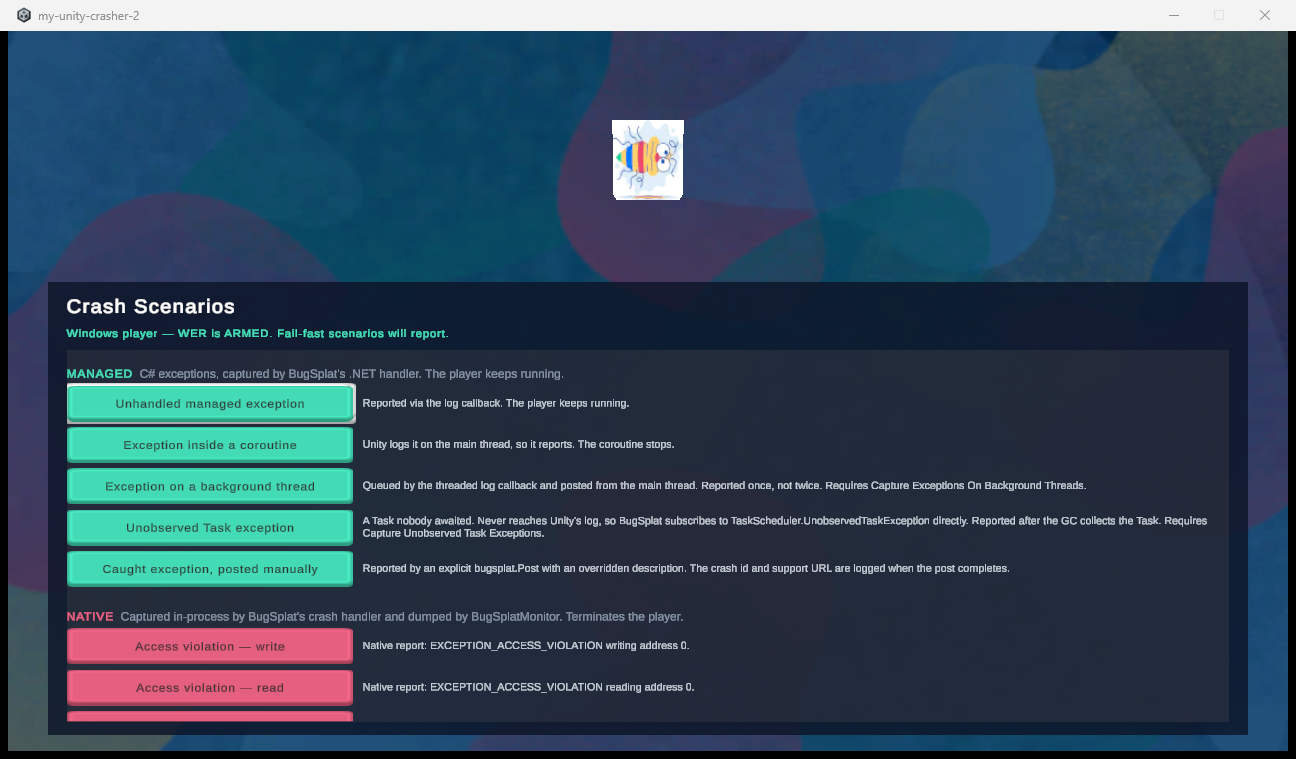
Each scenario you run creates a crash report on the Crashes page of your BugSplat database.